Getting Started
Prerequisites
- A Nightbot account connected to your Twitch or YouTube channel. Nightbot is what turns chat commands into RaidQ calls.
- A RaidQ streamer account. Sign in at
/streamerwith Twitch or Google — the setup wizard runs right there on first sign-in (see step 1).
1. Set up your channel
- Open
https://raidq.pogo.tips/streamerand sign in with Twitch or Google. On your first sign-in this drops you straight into a short setup wizard, no admin step required first. - Link a channel. Signed in with Twitch, your Twitch channel is prefilled from the login and locked — just confirm it. Signed in with Google, paste your YouTube channel URL or
@handleand click Check; RaidQ resolves it and shows the channel name back to you for confirmation. Either way you can also add the other platform right there, or later from your dashboard. Didn't sign in with Twitch? Type your Twitch channel name instead — RaidQ finishes linking it automatically the first time your Nightbot command runs. Twitch-only? Sign in with Twitch — a Google sign-in requires linking a YouTube channel to finish setup. - Accept the Terms of Service and Privacy Policy.
- Join the Discord (discord.gg/fgUC4E5SF6) and message Termin4l for access to the streamer / RaidQ channel — support and notifications only, this never blocks your setup.
- Click Finish setup. Under the streamer cap you land immediately on the dashboard with tiles for Queue, Overlays, Settings, Supporters, Reports, and Billing (Docs and Commands links sit in the page footer), plus your channel URLs and the Nightbot command to copy — see Streamer Dashboard. Over cap, you're waitlisted and an admin admits new streamers by hand as spots open; if your channel is already linked to RaidQ, an admin reviews it first. Either way the page keeps showing your status — if it ever says your request was denied, or your account or channel is disabled, contact @PoGoTipsOfficial.
Your channel is identified everywhere by its channel ID: the YouTube channel ID, or the Twitch channel ID. If you run Nightbot on Twitch but want the queue tied to your YouTube channel, they merge into one account automatically — the platform you signed in with stays the channel ID everything else (queue, overlays, reports) is keyed on, and the other platform becomes an alias of it.
2. Get your channel URLs
On the dashboard, under Your Channel URLs, use the Copy button to grab your Queue page (/que), the queue manager for you and your mods.
Your OBS overlay URLs are on the Overlays page (the Overlays tile on the dashboard, /streamer/overlays). Use its Copy buttons to grab:
- your Raid Group overlay (vertical) (
/overlay), for OBS - your Raid Group overlay (wide) (
/overlay/wide), the same deck and queue, stacked like the vertical overlay with the names in two columns, for OBS - your Boss overlay (
/overlay/boss), for OBS
Always use the copied link as-is, including any t= access token on the end. It looks like this:
https://raidq.pogo.tips/que?channel=<YOUR_CHANNEL_ID>
Bookmark the queue page. Don't post any of these links publicly (see the warning on Streamer Dashboard).
3. Wire up Nightbot
Each RaidQ command is a Nightbot custom command whose message is a $(urlfetch) call. Nightbot fetches the URL and posts RaidQ's reply in chat. Every command uses the same base URL and differs only in the cmd= value:
https://raidq.pogo.tips/cmd?cmd=COMMAND&user=$(user)&args=$(querystring)
Nightbot identifies your channel automatically from the headers it sends. No channel ID goes in the command URL.
Adding a command in Nightbot
- Go to your Nightbot dashboard → Commands → Custom
- Click Add Command
- Set Command to
!here - Set Message to
$(urlfetch https://raidq.pogo.tips/cmd?cmd=here&user=$(user)&args=$(querystring)) - Set Userlevel (see the table below and Commands)
- Repeat for each command you want to enable
Userlevels are enforced by Nightbot, not RaidQ
RaidQ replies to whatever Nightbot sends it. If you leave !next or !clear at Everyone, any viewer can run them. Set mod commands to Moderator in Nightbot before your first session. The only exceptions are !health and !here @user, where RaidQ itself replies "Mods only." to anyone who isn't a moderator or the streamer.
Minimum command set
At minimum, add these five to get a functional queue:
| Command | Userlevel |
|---|---|
!here |
Everyone |
!reg |
Everyone |
!que |
Everyone |
!next (or !fill, the same command) |
Moderator |
!done |
Moderator |
Add the rest from the Commands page as needed. !set, !clear, !start, !stop, and !undo (undoes the last !done/!next/!clear/boss switch from chat, and takes back its raid credit) are the next ones most channels want.
4. Run your first session
From chat (or the Nightbot command tester):
!start        # opens both registration and the queue
!set Groudon  # sets the active boss
Viewers can now type !reg TrainerName to register, then !here to join. When you have enough people waiting:
!next   # pulls a group onto the deck, up to your group size (default 5)
!done   # clears the deck once the raid is over
!next   # pulls the following group
Between raids, the /que page shows the same state and has buttons for every one of these actions, so a mod on a phone can run the session without typing.
Switching bosses wipes the old queue
!set NewBoss clears out everyone who was waiting for (or already picked for) the previous boss. People don't carry over between bosses, but a boss switch can be undone with !undo (it brings the old boss, raid group and queue back and takes the credit back). Anyone already on the deck is credited for that raid first. Viewers who !here before you've picked any boss are held and added automatically once you do pick one. Switching from the /que boss picker offers a Keep Q option that keeps the waiting queue and clears only the deck; in chat, !set keep NewBoss does the same, and a plain !set NewBoss clears both.
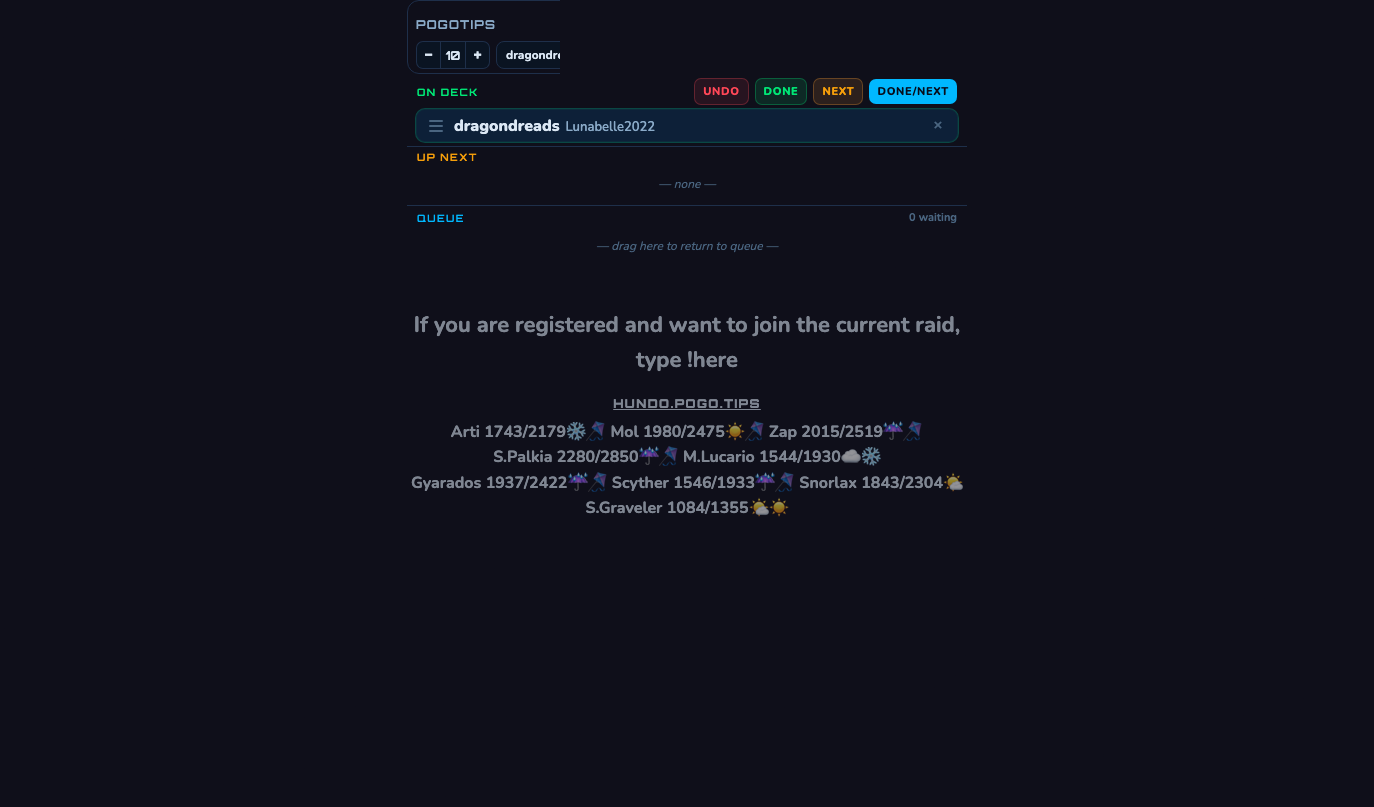
5. The /que page at a glance
Open your queue page link on any device.
- Raid group — the cards under the button row (RAIDING, FILL, CLEAR, DONE, NEXT/GO), with a green count box at the row's left. Pulled by
!next/!fillor the FILL button. Copy their names from the box at the top and paste into your raid invite. - UP NEXT — a preview of who's first in line.
- QUEUE — everyone waiting. Scrollable.
- REG / QUE badges — top right. Strikethrough = closed. Tap to toggle (or use
!start/!stopfrom chat). - Boss name — shown in the header. Change with
!set BossNamefrom chat or the boss picker on the page.
See The /que Page for every control and gesture, and OBS Overlay (copy the URLs from the Overlays page) to put the queue on stream.